
- Press Command + Spacebar to open Spotlight Search.
- Type Terminal and press Enter.
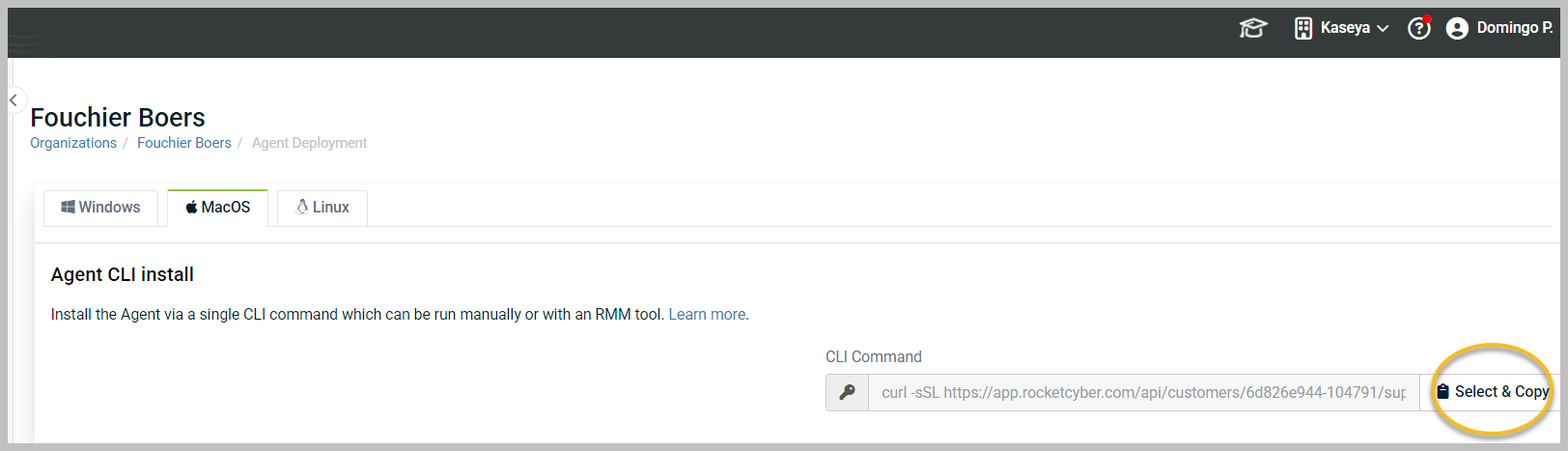
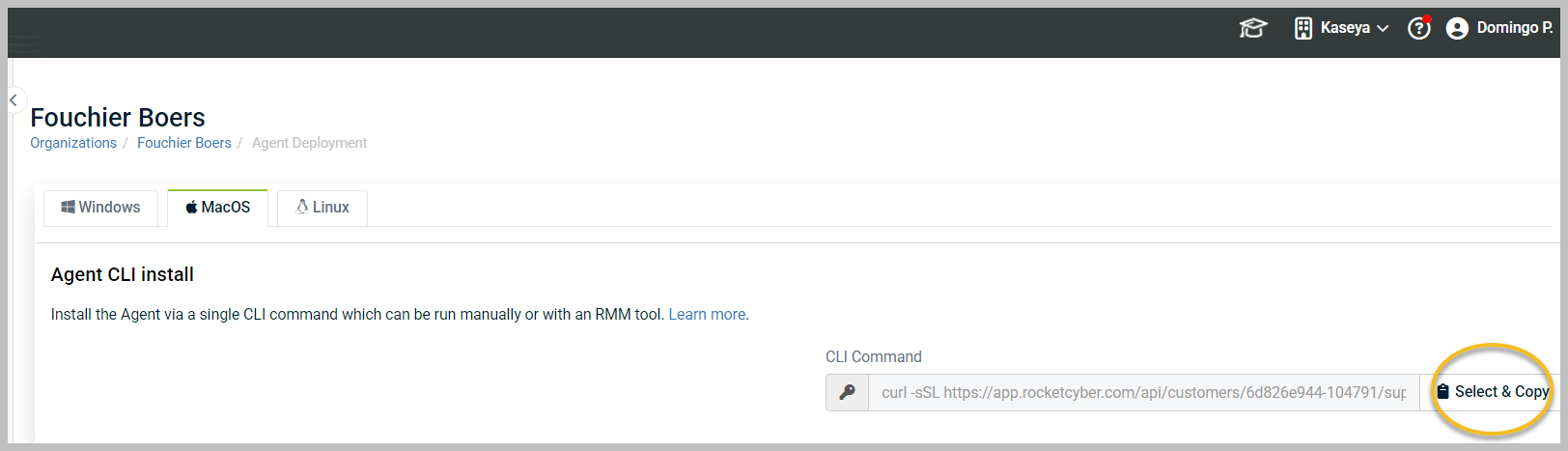
- Look at the right side of the highlighted text box in your image.
- Click the Select & Copy button to copy the installation command to your clipboard.
- Paste the copied command into your Terminal window.
- Press Enter.
- The installation may require administrator privileges.
- If prompted, type your Mac's login password and press Enter.
- Note: Terminal will not show characters or dots as you type your password.
- The terminal will output text as it downloads and installs.
- Wait until the process finishes and returns you to a regular command line prompt.
Installing the agent on macOS
Requirements
Device must be running a supported version of macOS. For more information, refer to Supported operating systems for the agent.
Agent must be installed with sudo privileges, which the default install script provides.
Installation
To install the agent on macOS, follow these steps:
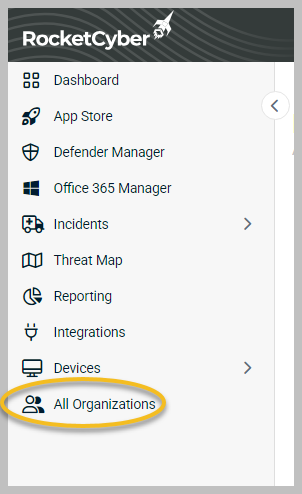
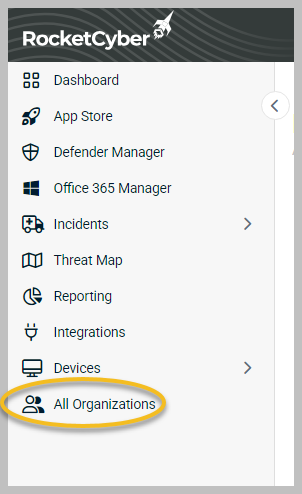
In the left menu, click All Organizations.
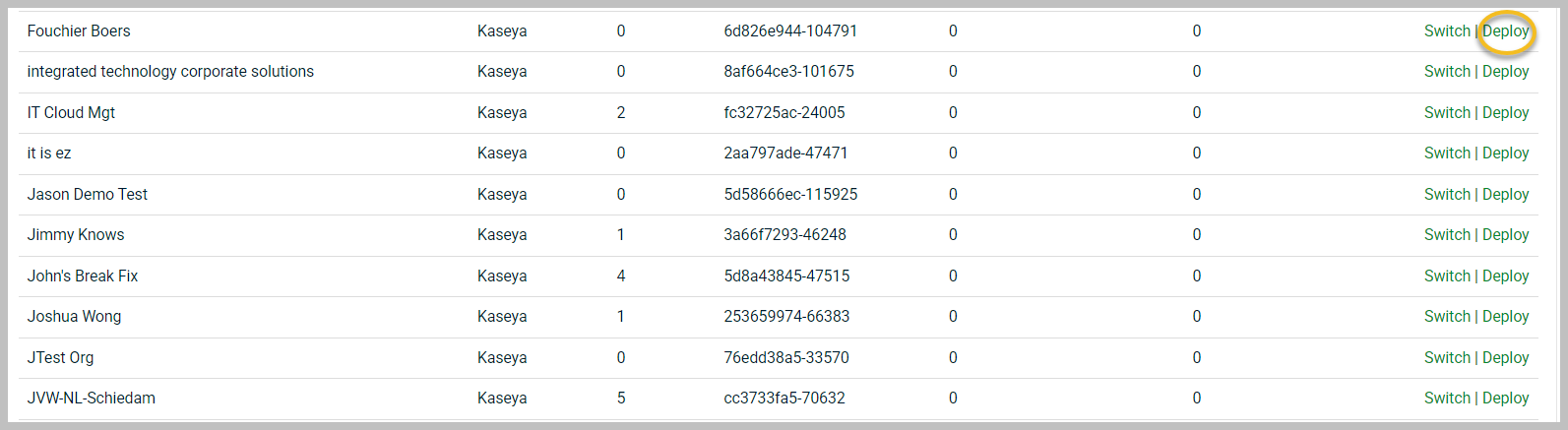
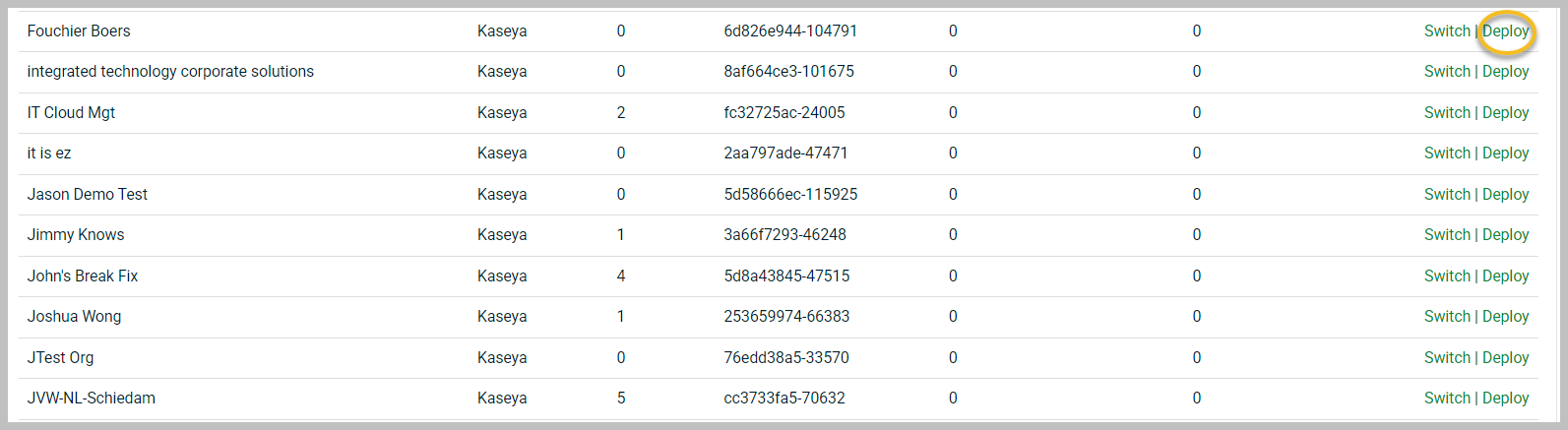
Click Deploy to the right of the organization where you want to install the agent.
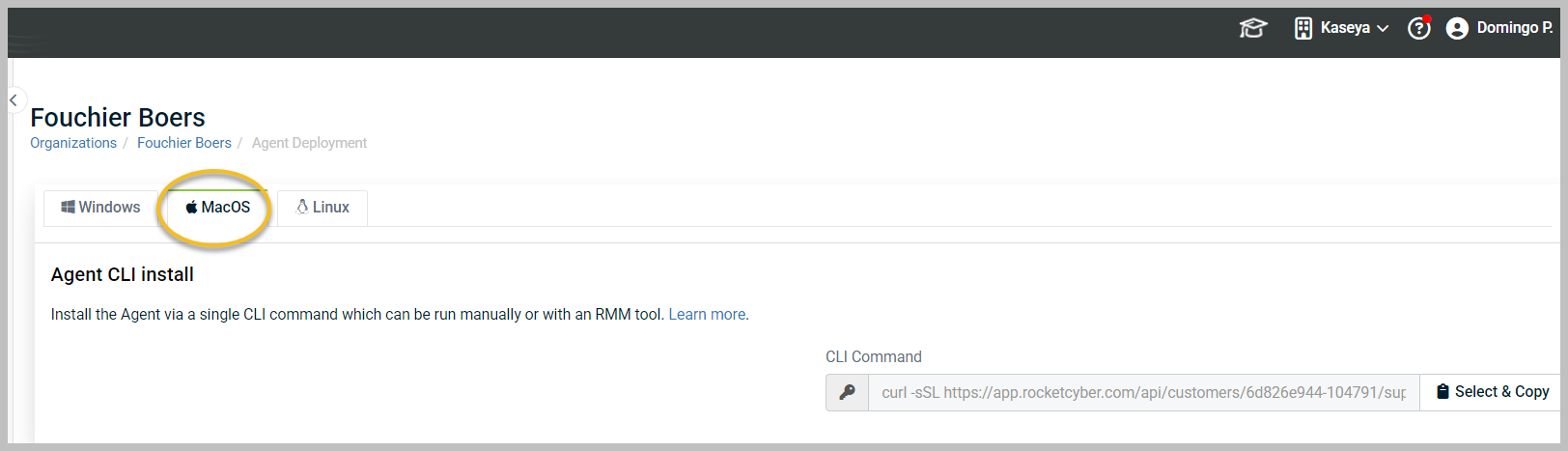
Click the MacOS tab.
Click Select & Copy to copy the deployment script to the clipboard.
From a terminal window on macOS, paste the copied deployment script and press enter.

The deployment script will download and install the required components to desired macOS device. It will prompt for administrator credentials as required for certain commands.
Once the agent deployment script has completed, return to the RocketCyber dashboard to view the device in the device list.
Deploying via RMM and other tools
Any RMM tool that can run a bash shell script as root can use the same CLI command.
Instead of copying the command to the terminal prompt, paste the CLI command into your RMM tool's script editor and choose to have the script run as system or root.